虚拟机VMware 10安装CenteOS 7.0系统

2026-04-01 22:29:26

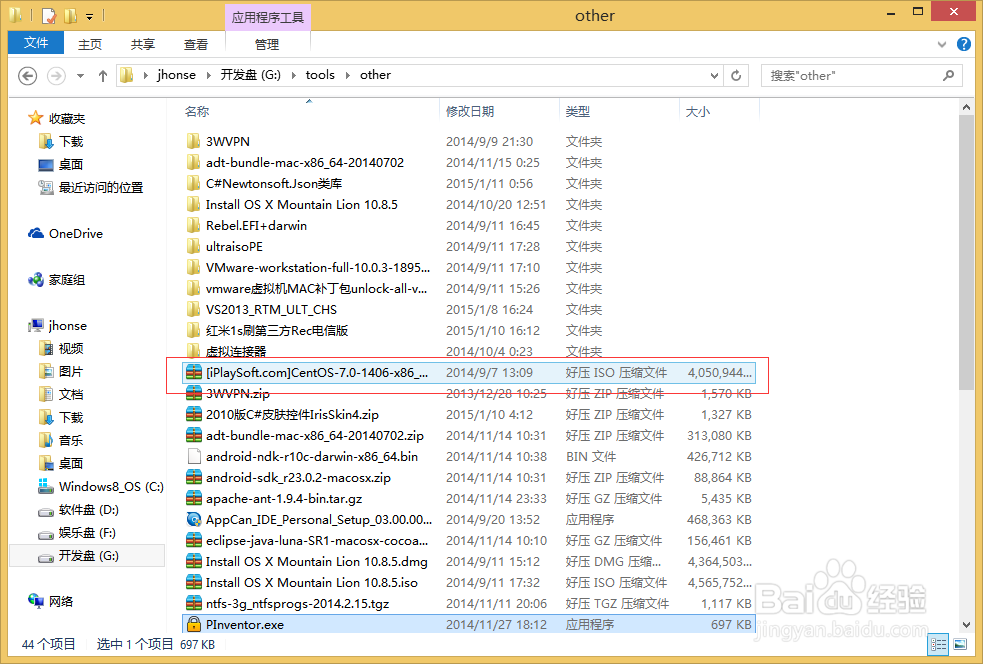
1、第一步: 下载CentOS7.0对应的IOS包。

虚拟机VMware 10安装CenteOS 7.0系统

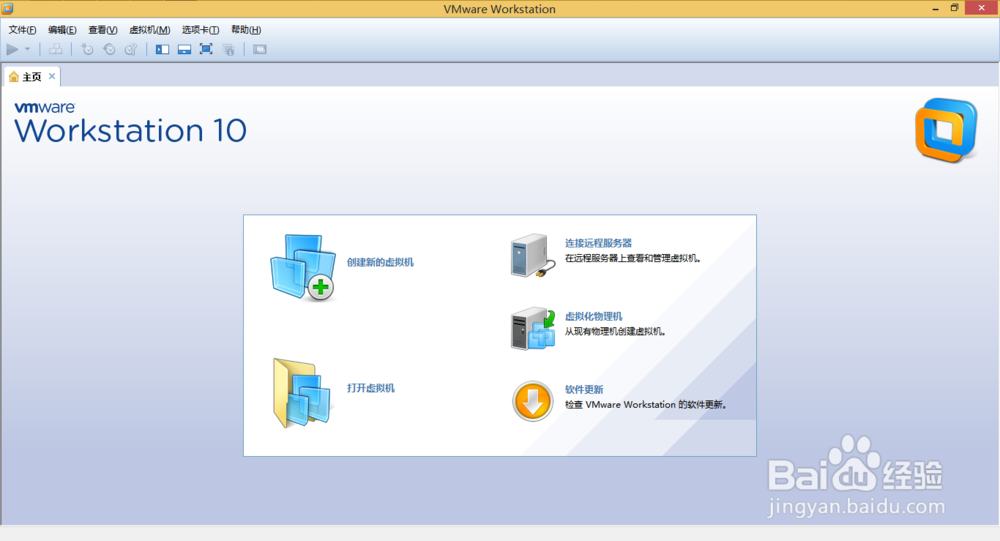
2、第二步: 安装VMware10.0虚拟机

虚拟机VMware 10安装CenteOS 7.0系统

3、第三步: 安装CentOS7.0系统

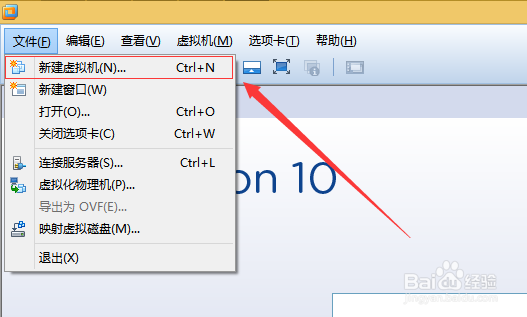
1. 在虚拟机中新建虚拟机

虚拟机VMware 10安装CenteOS 7.0系统

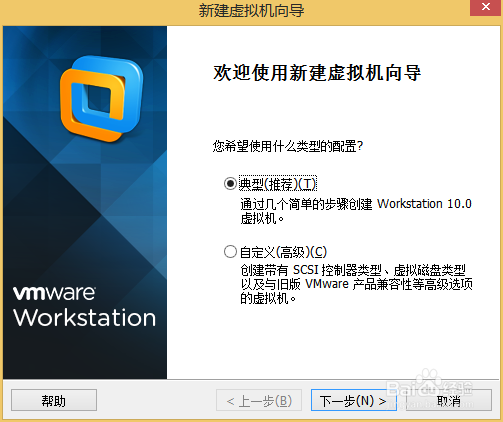
4、2. 设置类型配置

虚拟机VMware 10安装CenteOS 7.0系统

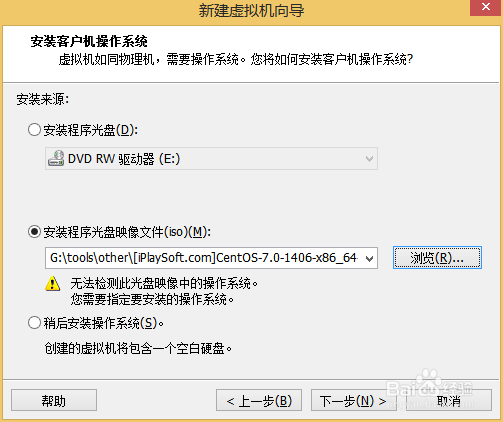
5、3. 选择CentOS7.0镜像文件

虚拟机VMware 10安装CenteOS 7.0系统

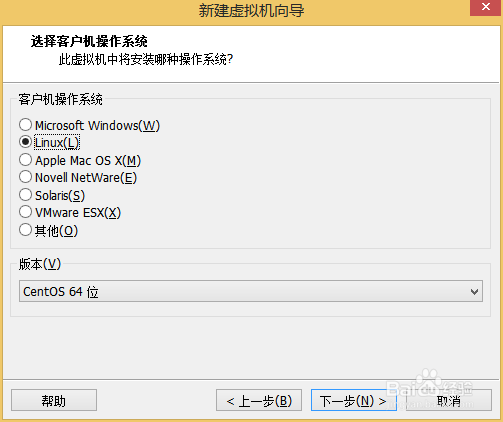
6、4. 选择操作系统

虚拟机VMware 10安装CenteOS 7.0系统

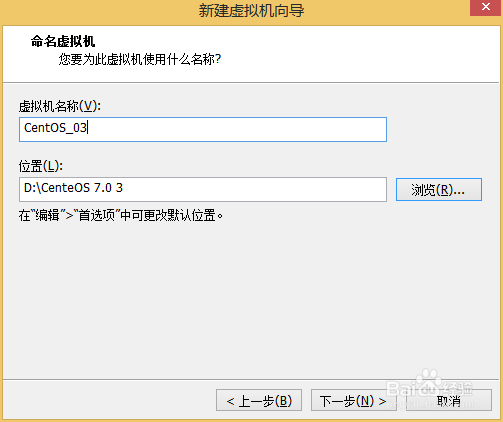
7、5. 命名虚拟机

虚拟机VMware 10安装CenteOS 7.0系统

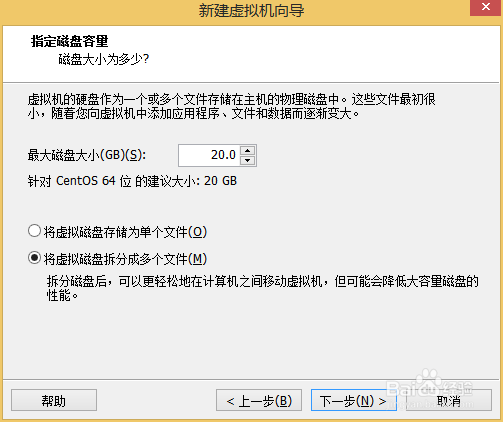
8、6. 指定磁盘容量

虚拟机VMware 10安装CenteOS 7.0系统

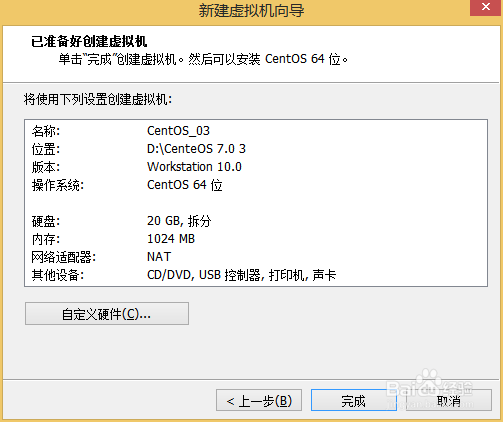
9、7. 已准备好创建虚拟机

虚拟机VMware 10安装CenteOS 7.0系统

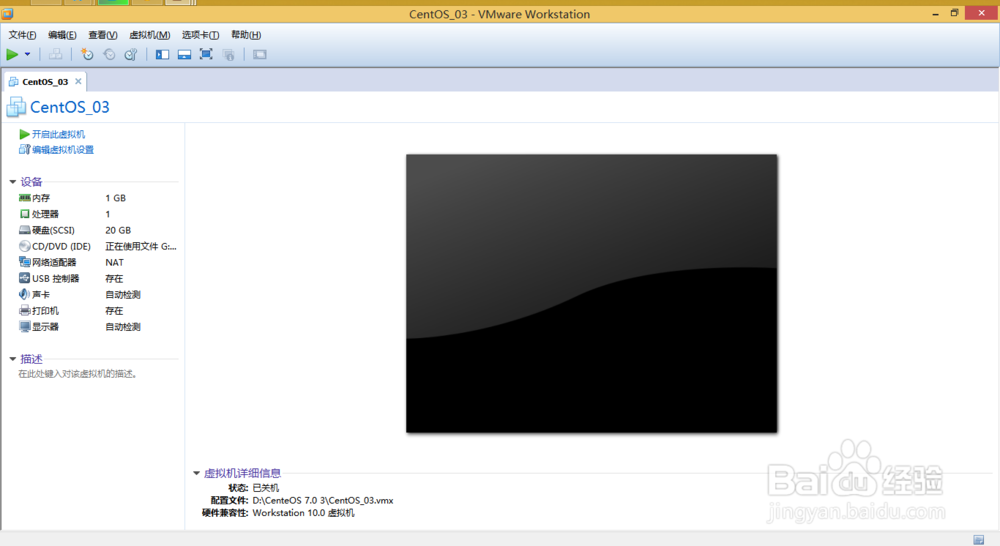
10、8. 进入配置好虚拟机界面

虚拟机VMware 10安装CenteOS 7.0系统

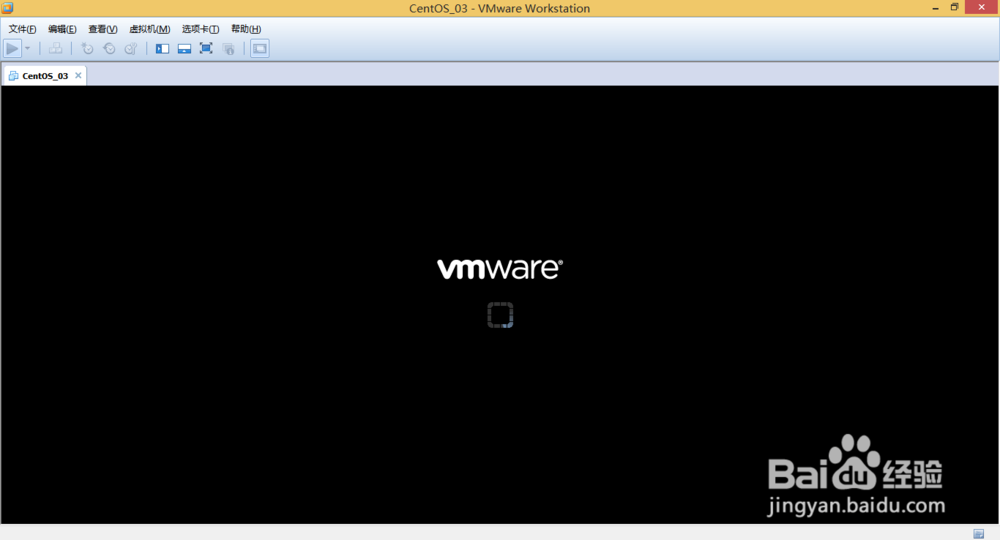
11、9. 开启虚拟机

虚拟机VMware 10安装CenteOS 7.0系统

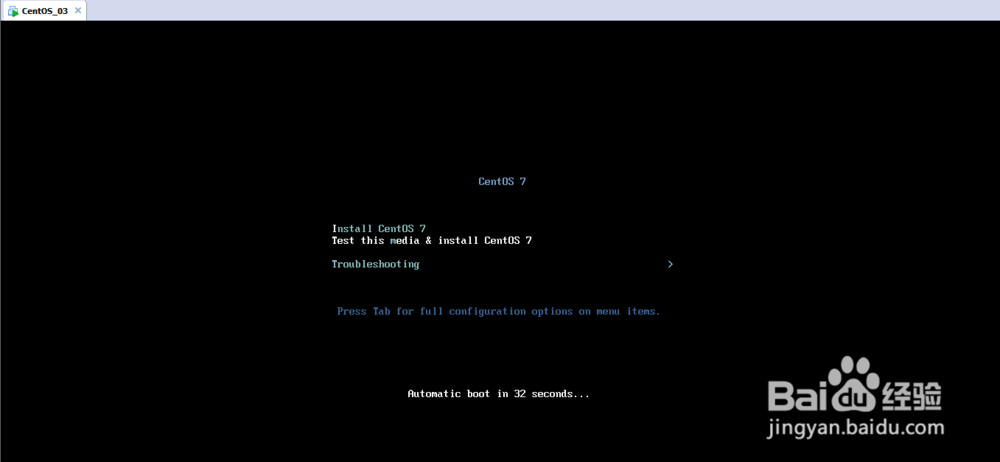
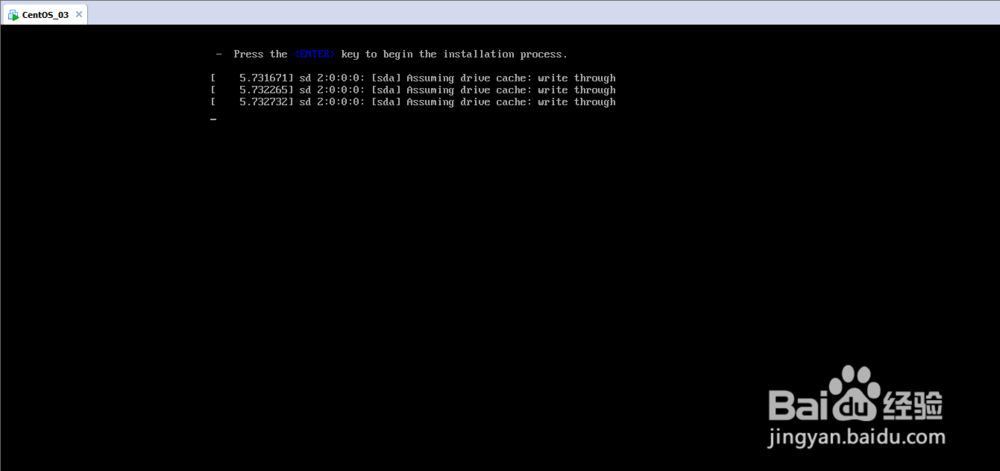
12、10. 进入CentOS安装界面

虚拟机VMware 10安装CenteOS 7.0系统

13、11. 安装CentOS 7.0

虚拟机VMware 10安装CenteOS 7.0系统

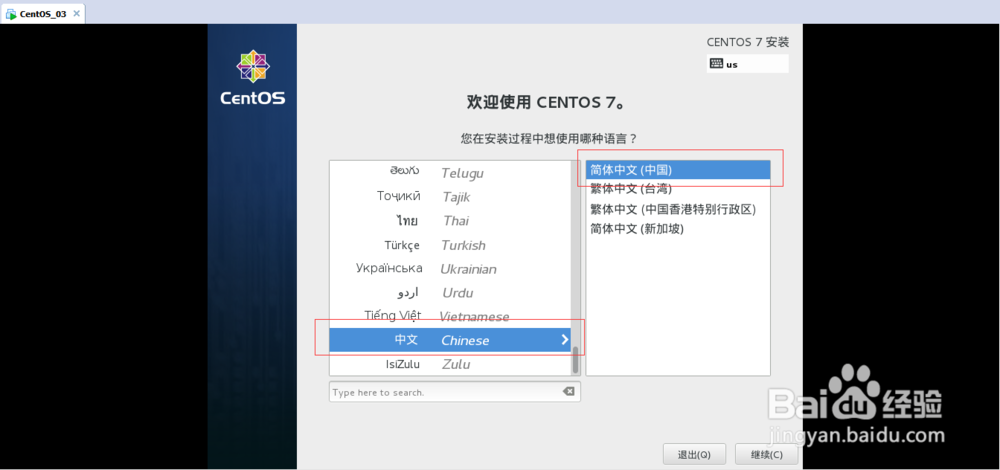
14、12. 选择系统语言

虚拟机VMware 10安装CenteOS 7.0系统

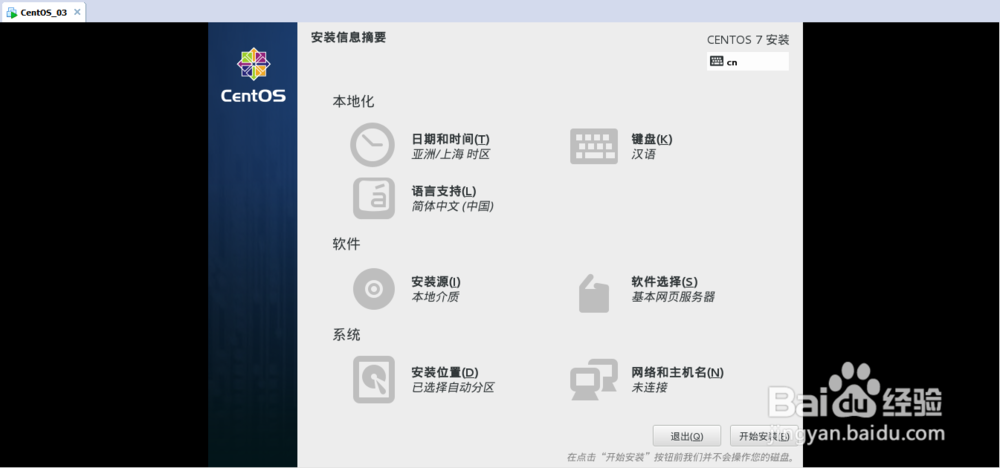
15、13. 安装信息摘要(无界面的系统)

软件的话我选择的是基本网页服务器,且没有界面的

系统对应的网络请开启,且我选择的DHCP自动获得IP
虚拟机VMware 10安装CenteOS 7.0系统

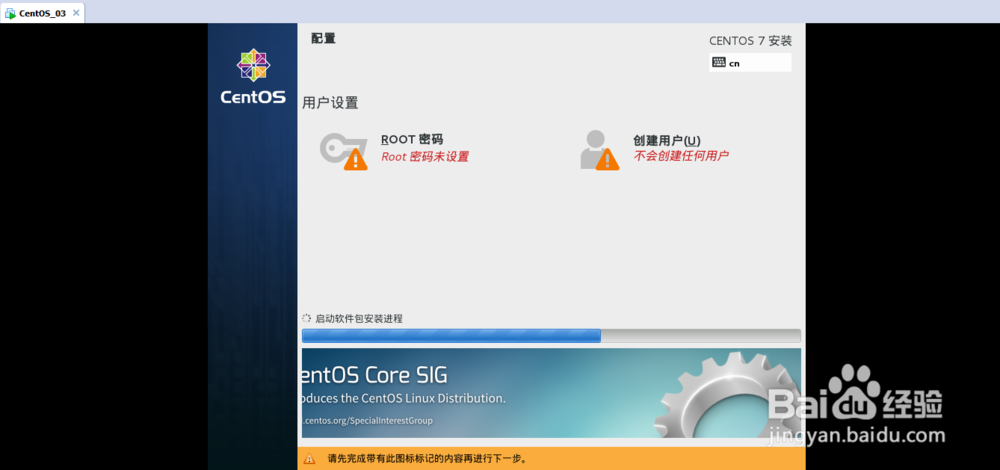
16、14. 配置root账号

虚拟机VMware 10安装CenteOS 7.0系统

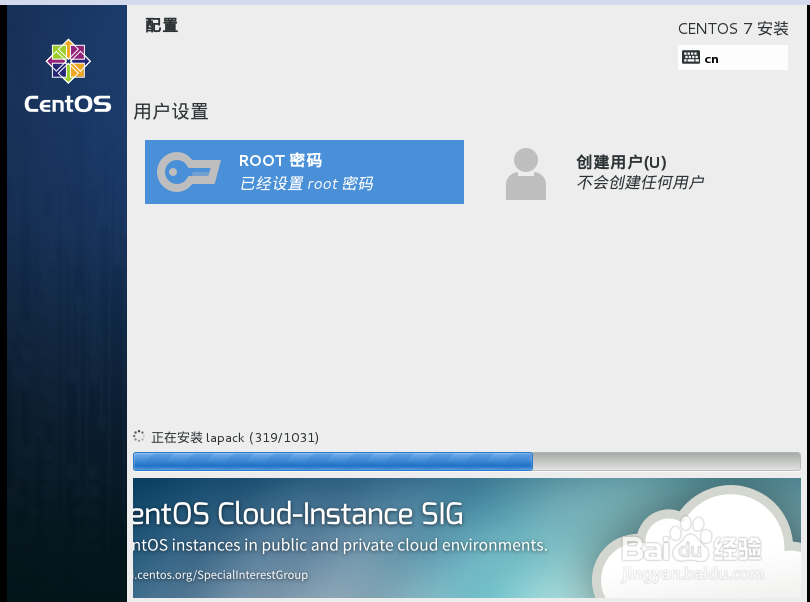
17、15. 等待安装

虚拟机VMware 10安装CenteOS 7.0系统

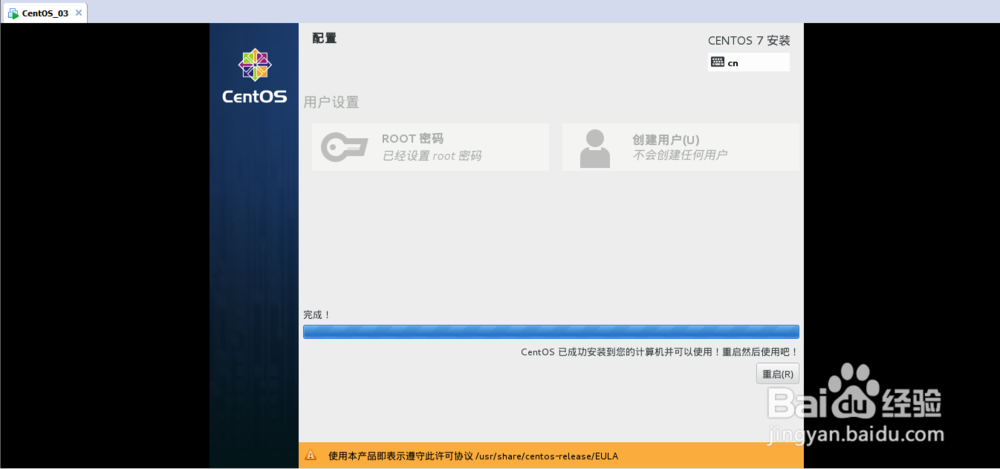
18、16. 安装完成

虚拟机VMware 10安装CenteOS 7.0系统

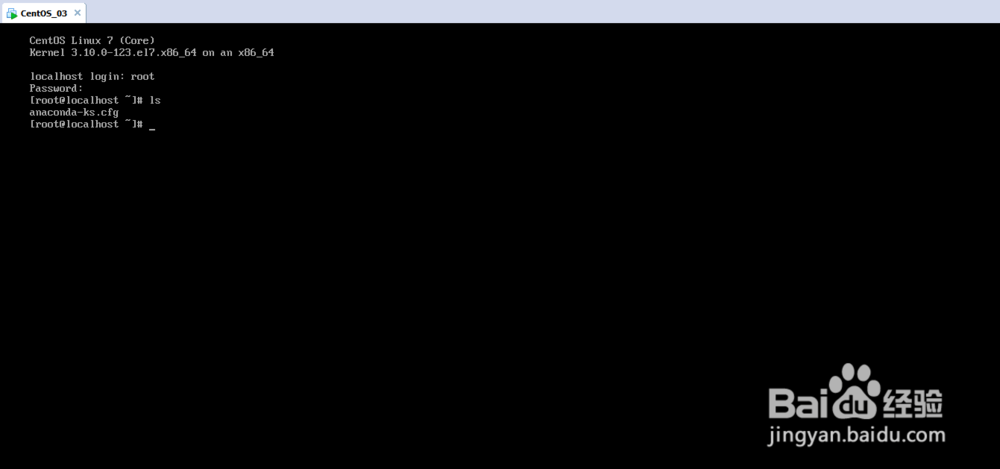
19、17. Centos7.0界面

虚拟机VMware 10安装CenteOS 7.0系统

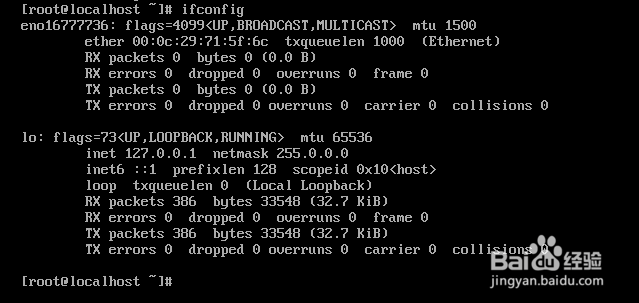
20、18. 测试网络以及USB接口

虚拟机VMware 10安装CenteOS 7.0系统

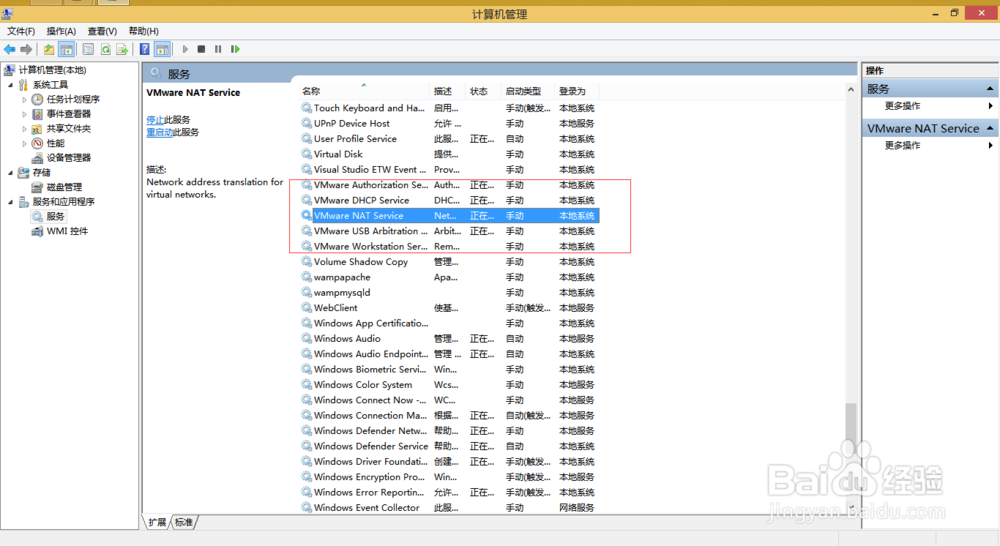
21、未获得IP以及USB不识别,解决方法是开启对应的服务。

虚拟机VMware 10安装CenteOS 7.0系统

猜你喜欢